With this method you won't be asked to supply your old cPanel password.
1. Access the client area dashboard by logging-in at https://www.globalhosting247.com/login
2. Click on "my services" link under "Hosting" menu and access the hosting service page you wish to change it's cPanel password. Alternatively, click on the direct link https://www.globalhosting247.com/clientarea.php?action=services that takes you to the list of all your hosting services and click on the hosting service you wish to change it's cPanel password.
3. Click on "change password" link you will find at left hand side if you use desktop/laptop(see below screen shot). 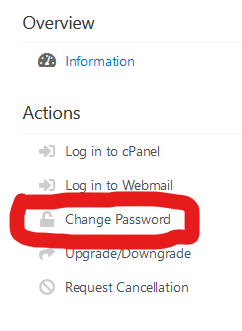
4. You can now input the new cPanel password and click on "save changes" button to reset the cPanel password(see screen shot below). Please ensure the password entered is a strong password (combination of uppercase, lowercase, numbers and symbols). You can use the "Generate Password" button to generate a strong password.





 WGS AI Assistant